Lab 0: Introduction to Development Tools, Frameworks, and Services
==================================================================
Ryan Mullins | [RyanMullins@psu.edu](mailto:RyanMullins@psu.edu)
# Overview
This lab is designed to introduce you to the core technologies you will be using throughout the course to create dynamic web maps. First you will activate your PSU personal web space, then we will go over the components of a web application, and finally discuss the core languages and technologies used on the web. This lab is intended to be an overview of the components we will be using and has no deliverables, though students are expected to complete Section 1 prior to the first day of lab (17 Jan 2014).
# 1 Activating Your Web Space
The Pennsylvania State University provides students, faculty, and staff with their own personal web space, hosted on the PASS server. This space will will be the primary location where you will host and present your maps throughout the course. Below are the necessary steps to activate your personal web space. If you have already activated your account, which is likely if you have already taken English 202, then you can skip these steps.
* Click this following link to Apply for Web Space on www.personal.psu.edu, and take the user quiz. This quiz is NOT graded. The university uses this quiz as a way to ensure you understand the Penn State terms of use and Use and Licensing Agreements (ULA).
* Once you have completed the quiz you will have access to the Penn State Web Server, and your web space. Your web page will be the Penn State Personal Web Server address with your Penn State ID at the end. Please verify that your space has been activated by going to that address, you should see something similar to Figure 1. Example: http://www.personal.psu.edu/abc1234
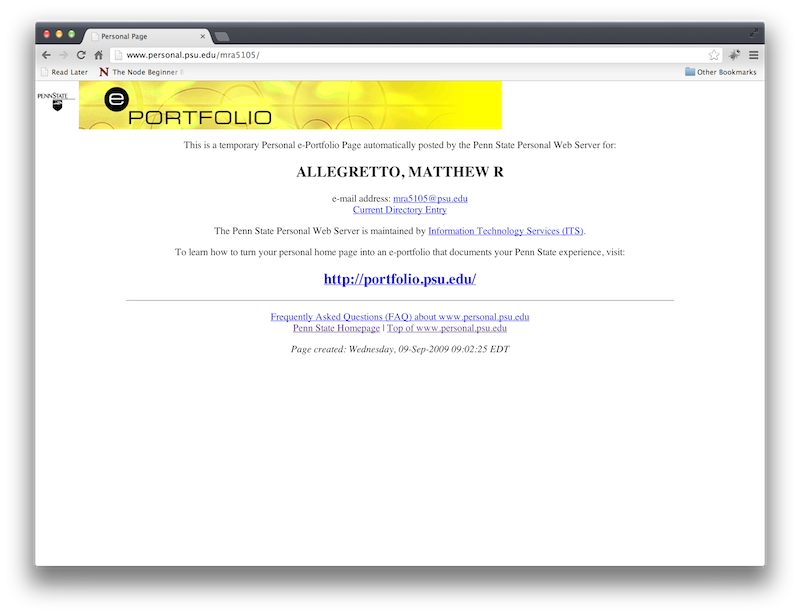
Files shown on your web space are stored in the "www" folder in your PASS space. Adding a folder or file to the "www" folder will make it publicly accessible and will be the primary way you share your maps in this class. When you're not logged into a PSU computer, you can access this space via the [PASS Explorer](https://explorer.pass.psu.edu/).
The university also supplies a series of tutorials on [creating an ePortfolio](http://eportfolio.psu.edu/). If you are interested, this would be a good way to create a personal online presence for employers to look at the work you've done during school.
# 2 Components of the Web
In this section I provide a cursory overview of the basic components involved in storing, accessing, and viewing a web page. While this is all very important information, this will not be graded in any way.
## 2.1 Browser
The browser is the part you are all familiar with. Browsers are clients that allow a user to navigate to a page, which is then loaded for the user to view and interact with. Common browsers include Mozilla's Firefox, Google Chrome, Apple's Safari, and Microsoft's Internet Explorer. A quick note on Internet Explorer. Please do not use this browser, it does not follow the standards set forth by the World Wide Web Consortium and creates a lot of problems for web developers.
## 2.2 Server
The server is a piece of hardware that receives and responds to requests from a client. Servers are capable of storing, processing, and transmitting data, commonly referred to as resources. They also act as the backbone for web applications, like the ones you will be developing in class. It is possible, and can be fairly simple, to set up your own private server on your personal computer, a standard practice for most web developers. Luckily, Penn State offers students access to a free, enterprise grade server, which you set up access to in Section 1, so you will be using that for this course.
## 2.3 Connection
In order for a client and server to communicate, the system must establish a connection between them. There are several types of connections available, but the most common is the Hypertext Transfer Protocol, which you may are probably more familiar seeing written as HTTP. This protocol defines the way in which a client and server talk to each other and also serves as the basis for building web applications.
HTTP is built upon the idea that a client will request information from a server, and that the server will then respond with the requested information. Requests and responses make use of a request or status line, headers, and an optional message body to communicate what type of information they are seeking or sending.
### HTTP Requests
HTTP requests contain three basic components, a request line, headers, and an optional message body. The request line tells the server what to do after receiving the request. A request line consists of a method, a resource address, and a protocol. The method portion tells the server how to perform the request. There are nine (9) methods, collectively referenced as verbs, defined in HTTP/1.1, the four (4) most common are listed and described below.
* GET – Asks the server to simply return the data for the resource at the specified address. This is by far the most commonly used method.
* POST – Asks the server to use the data supplied in the request message body to alter or otherwise affect the data at the resource address, and to possibly return information to the client. POST requests are often made to: (1) change the attributes of an existing resource on a server; (2) add new data to the server; and (3) hide the parameters used in a request. This is the next-most commonly used request method.
* PUT – Asks the server to store the information contained in the request message body on the server at the specified address.
* DELETE – Asks the server to delete the information at the specified address.
The resource address is the location of that resource on the server. Servers, at their core, are simply computers that provide access to an underlying file system. Therefore, the simplest resource address is just the path to where that file is stored on the system. In more advanced applications and services, the resource address is the path to the function that will find a resource for you, adding a layer of securely and obfuscation to your application.
The protocol defines the type of communication being used. By far the most common is HTTP/1.1, though some others are used in various circumstances (i.e. a legacy system using HTTP/1.0).
Following the request line is a series of headers. Only one header is required; Host specifies the name of the server to connect to. Other commonly used headers include Accept, Cache-Control, Cookie, Content-Type, Content-Length, Origin, and User-Agent. Specifying headers beyond the Host can allow the server to more quickly, accurately, and safely process a request.
The final piece is the message body. While this piece is not required for all methods, it is used to contain the information being sent to the server for methods like POST and PUT.
### HTTP Responses
HTTP responses are very similar to HTTP requests, though not exactly the same. The chief difference between them is the use of a Status Line in place of a Request Line, and the types of headers used in the response.
The status line is the first line of a response and contains three pieces of information, the protocol, a status code, and a short textual description of the status code. The protocol is the same as the protocol of the request. Status codes are defined as a series of three digit numbers ranging from 100 to 599, and are associated with predefined textual descriptions. Below are the general categories and some examples of commonly encountered codes in these categories.
* 1xx Informational – These codes are provisional responses to HTTP/1.1 requests and are not frequently encountered. They cannot be used in the response to and HTTP/1.0 request.
* 2xx Success – These codes indicate that the request was successfully executed. The most common of these statuses is 200 OK, it is used with GET and POST requests and indicates that the request was executed and that the message body contains the results of this request.
* 3xx Redirect – These codes indicate that you are being redirected from the requested resource to another location and that the client must take additional action to complete the request. The most commonly encountered is 302 Found, which indicates that the resource was found permanently at a different location (acting as a 303), or was found at a new temporary location (acting as a 307).
* 4xx Client Error – These status codes indicate that there was an error in the message sent by the client to the server. The most common are 404 Not Found, meaning the requested resource does not exist, and 403 Forbidden, meaning the client does not have permission to access this resource.
* 5xx Server Error – These status codes indicate that an error occurred on the server when it tried to process the request. The most common are 500 Internal Server Error, meaning the server failed in some way, 502 Bad Gateway, meaning the server could not grant access to the upstream service it was providing access to, and 503 Service Unavailable, meaning the server cannot be accessed because it is overloaded or down for maintenance.
The headers used in a response also differ from those used in a request. By far the most commonly used are Content-Type and Content-Encoding, giving information about the data included in the response. Others, like Link and Set-Cookie, are used by some responses to to define how the client should handle the response and change its state. Web services use the Access-Control-Allow-Origin header to define the external domains that are allowed to access the content on the service.
The message body of the response is technically no different than that of a request. Though in practice the body contains data that is processed by the client and displayed as content to the user, instead of providing further information to the server.
# 3 Markup, Scripts, Styles
Client-side web development — making the pages you actually see in your browser — is built primarily of three pieces: (1) a markup syntax for structuring content, (2) a scripting language for handling data and interactions, and (3) style information for displaying content in a visually appealing way.
## 3.1 HTML
This section describes the basic structure of HTML content
### Foundations and HTML 5
HTML is a "markup" syntax for creating web pages. This syntax is based on the Extensible Markup Language (XML) using tags and attributes to define the type and display characteristics of content. There are three current versions of HTML — HTML 4.01, XHTML, and HTML 5. At this time, HTML 4 and XHTML are the fully ratified standards supported by all major browsers and the World Wide Web Consortium. HTML 5 is the next generation of the HTML standard, offering many advancements in graphical performance and structures, though it is not designed to replace XHTML. In Geog 461W you will be using the HTML 5 standard for your projects and labs.
### Tags
Content is typified in HTML by encapsulating it in a "tag". The general form a of a tag is shown in Listing 1.
```HTML
Some Content
```
As you can see, a tag consists of two structure that bound content, the former being the opening tag and the latter being the closing tags. The opening tag — which begins with a left angle bracket (<), followed immediately by the tag's name, and possibly some attributes, before a right angle bracket (>) — tells the browser (or some other structure) that everything that follows this tag, and before the closing tag, is of the content type associated with that tag. The closing tag — which begins with a left angle bracket (<), followed immediately by a forward slash (/), the tag's name, and a right angle bracket (>) — signals the end of the content of that type.
The content of a tag can either be text, another tag, or both. This allows you do define content type within another content type. A common example of this would be wrapping several content elements in a div element, then styling that div to give the content a special background color and border.
Some very quick notes on style. Tag names are case insensitive, but you should be consistent in how you define them as it will make for easier to read documents. When starting a tag the content with the tag (also know as the text)
Below is a list of commonly used tags.
* html - The tag used to start an HTML document.
* head - Content related to the page but not shown to the user
* body - Content that is shown to the user
* div - A generic container for content, probably the most used tag in HTML
* h1 - Top level header
* h2 - Second level header
* h3 - Third level header
* p - A paragraph
* a - A link (this one still doesn't make logical sense to me)
* script - JavaScript code that is run on or available to the page
* link - A link to an external reference, like a style sheet
* strong - A tag to make a certain portion of text bold faced
* em - A tag to make certain portions of text italicized
### Attributes
The final piece to an HTML tag are the attributes, shown in Listing 2. Attributes allow you to define further information about a tag. The two most commonly used attributes and 'id' and 'class'. The 'id' attribute gives the unique identifier for a tag so that you can reference that element in other places on the page. The 'class' attribute defines a category of elements that have similar styling. Any element can belong to multiple classes.
```HTML
Some Content
```
## 3.2 JavaScript
JavaScript is the standard scripting language used by web browsers. This will be the primary language in which you write code fro this course. This sections describes the JavaScript data types, the use of variables, and the concept of JavaScript libraries.
### Data Types
_**Objects**_ The most basic type of data in JavaScript is the object. All other data types are built from the Object data type. The basic syntax of a JavaScript object and for accessing the members of an object are described in Listing 3.A.
Objects are containers that can hold more data within them. The data stored within an object, commonly called a property or member, can be referenced by name. In Listing 3.A you'll
```JavaScript
{
'_memberName_' : _memberObject_,
'_member2Name_' : _member2Object_
}
object.memberName
```
_**Strings**_ A string is a collection of characters and numbers for expressing textual data. Strings can be double quoted or single quoted, shown in Listing 3.B, and have special properties like the ability to find their own length and do equality comparisons.
```JavaScript
'single quoted string'
"double quoted string"
```
_**Numbers**_ A number is just that, a number. Numbers can be expressed is a variety of ways, but most times either an integer (whole number) or a floating point (number with decimal) are sufficient. Listing 3.C gives an example of both.
```JavaScript
321 // An integer
54321.0004 // A floating point
```
_**Booleans**_ A boolean is a true/false value. These are commonly used to tell a program if a condition is met, a property is enabled, or something for comparison.
_**Functions**_ A function is the basic unit of work for code. A function is contains statements that are executed in order to accomplish a task. The basics of a function are described in Listing 3.D.
```JavaScript
function _optionalFunctionName_(_optional, comma, separated, parameters_) {
_the function body..._
}
```
_**Arrays**_ Arrays are another generic container for data, which stored its members in a ordered list. Any type of data can be stored in an array then accessed via the index number. Listing 3.E details a standard array structure.
```JavaScript
[_element1_, _element2_, _element3_, ...]
```
### Variables
Variables are how we reference data in JavaScript. Variables are named entities that reference a specific memory address in the computer, at that memory address is the data that the variable represents. Variables are created using the 'var' keyword. Once you create a variable you can assign it data to reference, and then change that reference later on. You can even make on variable reference another variable. You assign the value of a variable using the assignment operator, '='. Listing 3.F gives some examples of how to work with variables.
```JavaScript
// Basic syntax
var aNumber; // This creates a variable called 'aNumber'
aNumber = 1.2345; // This assigns the value 1.2345 to the variable 'aNumber'
// Creating and assigning a value to a variable at the same time
var aFunction = function (number) {
console.log(number);
};
// Assigning a variable to reference another variable
var aVariable = aNumber;
```
### Operators
Operators are like a shorthand for predefined functions that allow you to do things like test equality, do simple arithmetic, and test for logical conditions. Operators are what allow us to define functions that actually do something with the data. Operators can take either one or two operands. The basic syntax for operators is shown in Listing 3.G.
**_Assignment_** — Assignment operators allow you to set the value of a variable. They can also be used as a shortcut to perform arithmetic operations on an existing variable. Some examples are shown in Listing 3.G
**_Comparison_** — Comparison operators allow you to compare one variable with another, or one variable with a constant value, or a constant value with another (though this is not a good use of them), returning a boolean value as the result. Comparison operators are most commonly used in conditional statements. Listing 3.G details all possible comparison operators.
**_Logical_** — Logical operators allow you to compare two boolean expressions, returning a boolean value as the result. Expression can have either an AND, OR, or NOT relationship. A logical AND means that both operands are true. A logical OR means that one of the two operands are true. A logical NOT operator means that opposite the boolean value of an operand is returned. Listing 3.G shows how logical operators are used, and how to chain logical operations together.
**_Special_** — There are a series of special operators in JavaScript that do not fit any other categorization. Of these you will commonly see three, the '?' operator, the 'typeof' operator, and the 'instanceof' operator. The '?', sometimes called the conditional, operator tests a boolean relationship and returns one of two values depending on the result. The 'typeof' operator returns the type of the data referenced by the operand. The 'instanceof' operator returns the boolean result of comparing the types of operands. Listing 3.G gives some examples of these operators.
```JavaScript
// ---- Basic Syntax ----
operator operand
operand 1 operator operand 2
// ---- Assignment ----
var aNum; // Creating a variable, 'aNum'
aNum = 1; // Assigning 'aNum' a value, aNum = 1
aNum += 2; // Assigning 'aNum' the result of aNum + 2, aNum = 3
aNum -= 4; // Assigning 'aNum' the result of aNum - 4, aNum = -1
aNum *= -2; // Assigning 'aNum' the result of aNum * -1, aNum = 2
aNum /= 4; // Assigning 'aNum' the result of aNum / 4, aNum = 0.5
// ---- Comparison ----
var aNum = 7
var obj = { 'val':7, 'name':'Ted'}
aNum == obj.val // Equality, DO NOT USE , true if values of operands are the same after type conversion
aNum != obj.val // Inequality, DO NOT USE, true if values of operands are not the same after type conversion
aNum === obj.val // Equality, true if values of operands are the same without type conversion
aNum !== obj.val // Inequality, true if values of operands are not the same without type conversion
aNum >= obj.val // Greater than or equal to, true if operand 1 >= operand 2
aNum > obj.val // Greater, true if operand 1 > operand 2
aNum < obj.val // Less, true if operand 1 < operand 2
aNum <= obj.val // Less than or equal to, true if operand 1 <= operand 2
// ---- Logical ----
true && true // AND, returns true
true && false // AND, returns false
false && true // AND, returns false
false && false // AND, returns false
true || true // OR, returns true
true || false // OR, returns true
false || true // OR, returns true
false || false // OR, returns false
!true // NOT, returns false
!false // NOT, returns true
(true && false) || true // Chaining, returns true
true || (false || true) // Chaining, returns true
// ---- Special ----
var aNum = 1.234;
var aStr = 'hello';
(aNum > 1) ? 'yes' : 'no' // returns 'yes'
(aStr === 'Hello') ? 'yes' : 'no' // returns 'no'
typeof aNum // returns 'Number'
typeof aStr // returns 'String'
aNum instanceof Number // returns true
aNum instanceof String // returns false
aStr instanceof Number // returns true
aStr instanceof String // returns false
aNum instanceof aStr // returns false
```
### Libraries
There is more and more software being written every day, and many times two applications need to make use of the same function. Rather than rewriting these functions every time they need to be used, you can package them up into a file, which is then loaded into another application for them to use. These packages are commonly referred to as libraries. You will be using several libraries in the following labs, more information on the specific libraries you will be using later.
## 3.3 Cascading Style Sheets
Cascading style sheets, or CSS, is a format for encoding style and formatting information for web pages. CSS allows you to define nearly every visual attribute of a web page. Style definitions can be made on elements of a given type, class, or ID. Type definitions are made by naming the HTML element type that is to be affected. Using CSS classes, specified in CSS files using the syntax `.className`, you can set the style of HTML elements with the class attribute containing a specific class name. Using HTML unique IDs, specified in CSS files using the `#ID` syntax, you can set the style for a single HTML element, though it is considered bad practice and should be avoided. Definitions can also be chained so that elements of a certain type look one way, while elements of that same type with a given class look another. See Listing 3.H for some examples.
```CSS
/* ---- Defining the Style of DIV elements ---- */
div {
'padding': 15px;
'text-align': left;
'font-family': Helvetica;
}
/* ---- Defining the Style of elements with a Class ---- */
.right {
'text-align': right;
'font-family': Times;
}
/* ---- Defining the Style of a unique element (bad practice) ---- */
#legend {
'padding': 25px;
'text-align': center;
}
/* ---- Chaining the Style Definition for a DIV with a Class ---- */
div .center {
'text-align': center;
}
```
CSS is a hierarchical structure, such that elements nested inside other elements inherit the style of their parents. This functionality, unfortunately, is a double-edged sword. The large majority of the time it allows you to define power, simple, and flexible styles that scale across platforms and devices. However, it can also be the most infuriating piece of the design process. Be prepared for many hours spent tweaking and refining CSS to get the exact look and feel you are going after.
# 4 Tools, Libraries, Services
Creating software is an intricate and laborious process, requiring careful thought and planning. To ease the load on themselves, programmers have developed tools, frameworks, and services that take care of some of the heavy lifting required in developing an application.
## Tools
Software development is a process that relies on and creates many tools, in fact everything in this section can really be thought of as a tool. For now, let us focus on the tools that you can use to create, test, and debug original content. We will start by discussing the tools used to create content.
As discussed in Section 3, web development on the client side is the creation of pages using a combination of HTML, JavaScript, and CSS. Luckily, you can easily create web pages using these three technologies with just a text editor. Text editors can be simple or complex. All modern computers come with a simple text editor installed — Notepad on Windows, TextEdit on OS X, and (typically) gEdit on Linux. While these editors provide basic functionality like spell checking and character encoding support, they often lack more advanced features like syntax highlighting, auto-complete, tabbed/project view support, or plug-in infrastructure (gEdit is one exception to this rule). To address this, developers have created a number of advanced text editors. Using one of these can greatly decrease the time it takes you to write or debug problems in your code. Personally, I use and recommend [Sublime Text](http://www.sublimetext.com/2). Sublime Text is a very powerful, free-to-try text editor that includes project-centric views, syntax highlighting, color themes, and a rich plug-in ecosystem that extends it to cover most anything that it doesn't cover out of the box. It is strongly recommended that you download SublimeText 2 and use it as you progress through these labs.
The next most important development tool is a test environment. The last thing you want to do is publish a project to the web for people to see and have it not work properly. So you test your project before you publish it. The simplest way to test a project is to simply open the HTML document you have stored locally on your computer in a web browser. This works for many testing scenarios — layouts, static content, etc. — but does not work as well when you try to load data from an external source. When you test a project that loads data from an external source, even if that source is just a different directory on your machine, you need to use a proper web server. The simplest test server available is the [WAMP](http://www.wampserver.com/en/)/[MAMP](http://www.mamp.info/en/index.html)/[LAMP](http://en.wikipedia.org/wiki/LAMP_(software_bundle)) series. These products package the Apache httpd web server, a MySQL database, and a PHP infrastructure to create web applications on Windows, OS X, and Linux systems respectively. These labs do not rely on this more advanced infrastructure (PHP + MySQL), but the httpd server does an excellent job of serving static the kinds of web pages and data that are used. More explanation on how to use these packages will be covered in Lab 2. Alternately, you can use the Penn State PASS service as both a test _and_ publishing platform.
The final piece in the developer tools puzzle is figuring out how to fix problem that you may run into. The process of identifying, tracking down, and fixing these problems is called debugging ([story behind the name](http://en.wikipedia.org/wiki/Debugging#Origin)). Debugging can take place at quite a few stages in the development process, but we will classify debugging tools as those that are used either before or during testing.
Debugging that occurs before you test is usually related to static code analysis or a code review. Static code analysis is the examination of the source code by an automated process to identify syntax errors, logic problems, and more. These labs have three types of source code that can benefit from static code analysis, HTML, JavaScript, and CSS. JavaScript and CSS both have static code analysis tools that you can use. [CSS Lint](http://csslint.net/) is a free web service where you simply copy and paste your CSS into a text field and it identifies problems, showing you where they are in a list and visually highlighting them in the text. [JSHint](http://www.jshint.com/) is a similar tool that identifies errors in syntax, logic, and can even analyze complexity. You can use the web interface for JSHint by simply copying and pasting your source code into a text field, or by installing [Node.js](http://nodejs.org/) and [JSHint](http://www.jshint.com/install/) on your machine and then using the [JSHint Gutter](https://github.com/victorporof/Sublime-JSHint) plug-in for Sublime Text, via the [Sublime Package Manager](https://sublime.wbond.net/), to see the result graphically in your code. HTML is more difficult to analyze because it is not a language like JavaScript and CSS. HTML validation tools do exist and can be found as plug-ins for [Chrome](https://chrome.google.com/webstore/detail/validity/bbicmjjbohdfglopkidebfccilipgeif?hl=en) and [Firefox](https://addons.mozilla.org/en-US/firefox/addon/html-validator/), though their scope is limited to only identifying syntax errors.
Debugging that occurs during testing is about solving problems that arise when someone is interacting with real data in an application, and most problems occur in the JavaScript used on the page. This is also known as run-time debugging. There are quite a few ways to debug code at runtime. The most brute-force way is to insert `console.log()` statements into your JavaScript. This will output a line of text, which you can customize, to the debug console of your browser for you to check where things are and what the state is at that time. This brings us to another question, what is a debugging console? A debugging console is a tool that is used to output text about the status, state, warnings, errors, and more. Some browsers (Chrome) come with a debugging environment built in, while others (Firefox) require that you install a debugging environment using a plug-in like [Firebug](https://addons.mozilla.org/en-US/firefox/addon/firebug/). These environments include support to analyze network connections, profile different aspects of an application, and visualize which resources are being used over time. Perhaps their most valuable feature is the addition of breakpoints, which allow you to stop your application while it's running to inspect it. Breakpoints and other aspects of runtime debugging are examined in detail in Lab 3.
## Libraries
Libraries were first mentioned in Section 3, below is a list and some short discussion on the libraries that are used in labs.
_**Leaflet.js**_ – Leaflet is the premiere web mapping library on the web right now. This open source library manages the geospatial back-end for visualizing map tiles and data on web pages. It has an enormous plug-in library, making it one of the most extensible and powerful mapping and visualization tools out there. All maps in this curse rely on Leaflet.js.
_**MapBox.js**_ – MapBox.js is a plug-in for Leaflet that makes integrating with the entire MapBox line of services a breeze. This plug-in will be used to load the map tiles you will create for your projects.
_**jQuery**_ – jQuery is the leading library for adding interactivity and dynamically working with content on the web. Labs use jQuery as the link between user interactions and the manipulation of data.
_**jQuery UI**_ – jQuery UI is a popular library for creating custom UI controls in web applications. Labs will use jQuery UI to do just that, allowing users to filter and control the applications you will create.
_**D3.js**_ – D3.js is the most powerful visualization library available, period. It uses a declarative style to manipulate and visualize data. D3.js can even be used with Leaflet to show complex data visualizations on a map. Lab 3 covers some of the basics of D3.js and how it can be used to visualize data.
## Services
Labs rely on a few external services to handle some of the heavy lifting in creating web maps. Below is a list and short description of the services that will be used in labs.
_**MapBox Hosting**_ – MapBox makes their money as a hosting service. They provide a spectrum of map tile hosting services that range from free to $500/month, for their premium level. Tiles created for maps in these labs will be hosted on MapBox servers using the free plans.
_**TileMill**_ – TileMill is a free desktop application for creating map tiles. There are [many](https://www.mapbox.com/tilemill/docs/crashcourse/introduction/) [tutorials](https://www.mapbox.com/tilemill/docs/guides/add-shapefile/) on the MapBox website that you can use to learn from. Lab 2 covers the basics of making map tiles with TileMill and uploading those tiles to MapBox servers.
# 5 Deliverables
There are no official deliverable for this lab. However, all Geog 461W students are expected to complete Section 1, setting up their personal web space, prior to the first lab of the semester (.